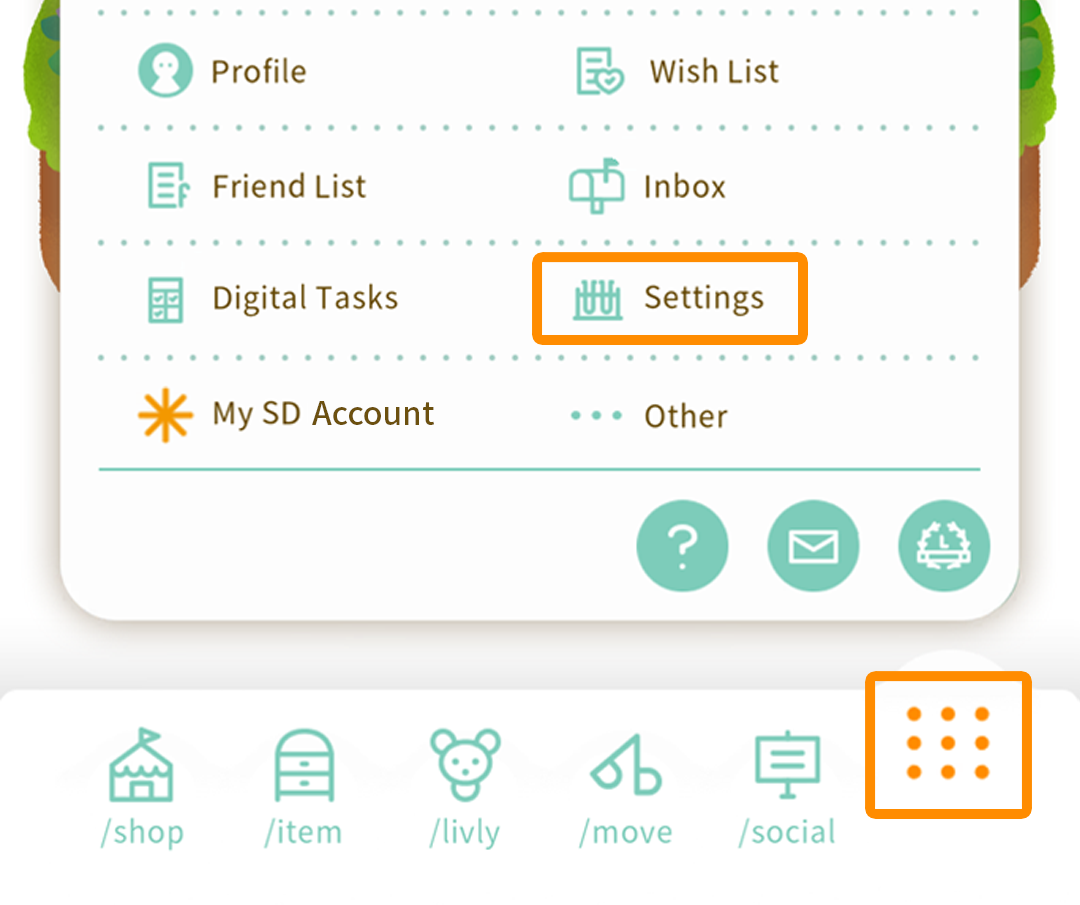
◆ Go to the Set Up Data Transfer Screen
Submenu > Settings > Set Up Data Transfer
◆ Register Data Transfer ID and Password
Set Up Data Transfer > Enter ID and Password > Confirm
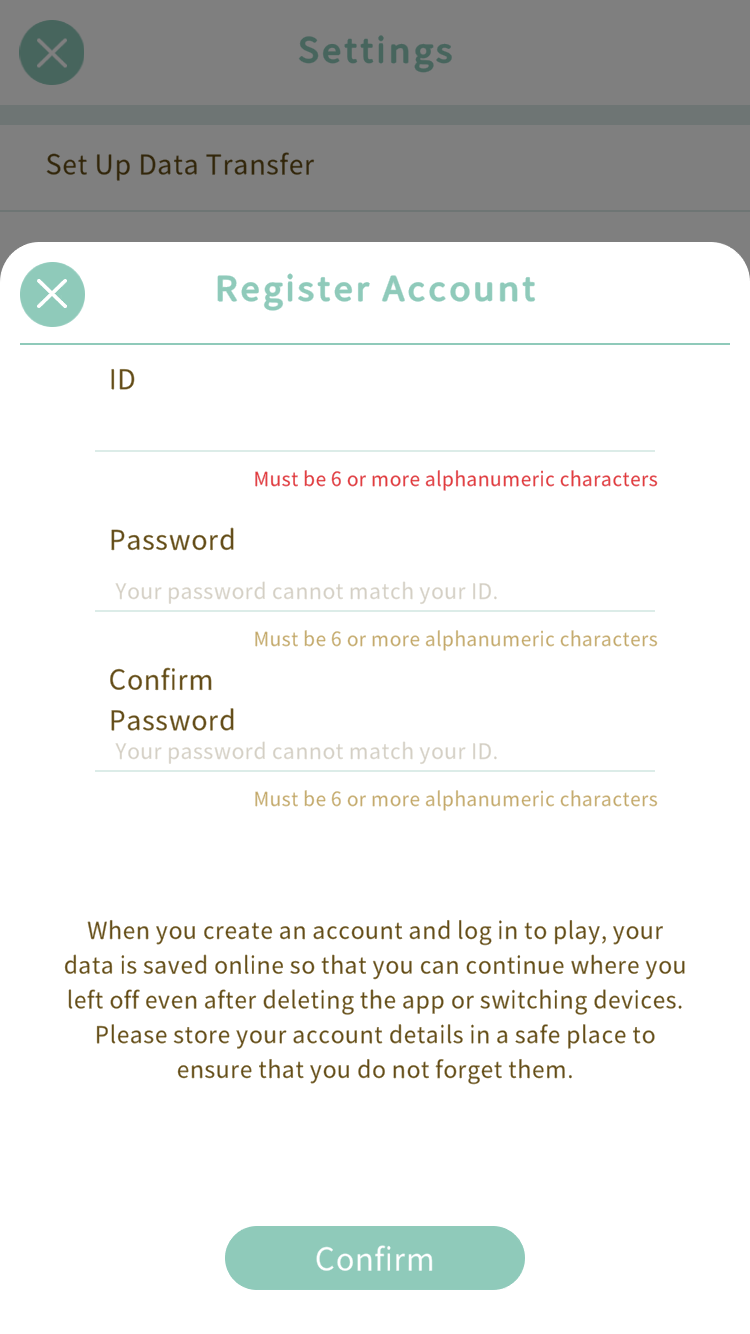
Please store your account details in a safe place.
*We are unable to provide support on lost account details since they are considered personal information.
◆ Data Transfer Method (Login Method)
1. Install Meta Livly on the target device of data transfer.
2. Launch Meta Livly and tap the Login button.
3. On the Login screen, enter the ID and Password you registered on your source device and tap OK.
4. Data Transfer is complete when you are taken to your Island screen.
◆ Reset Account Details
You can confirm your registered ID and password from the Set Up Data Transfer screen. Enter a new ID and password and tap the Update button to reset your account details.
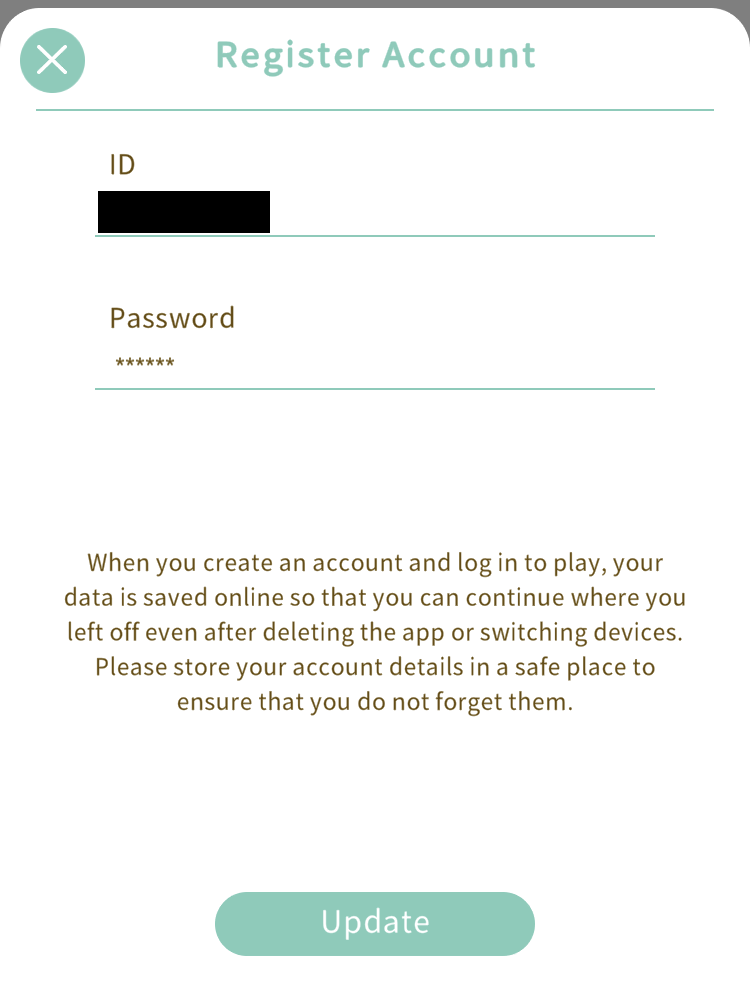
*Only a maximum of 6 characters will be displayed even if the password entered is more than 6 characters.
*Please note that your password will not be displayed for security reasons.
◆ Precautions Regarding Data Transfer ◆
・Owned GP/dd/SD/CC
Meta Livly currently has an App Store version and Google Play version.
Your GP/dd/SD/CC balances can be transferred between different OS versions. (Android⇔iOS)
・Owned Items
Items can be carried over even if you conduct a transfer between different OS devices (iOS⇔Android).
・Items in the Inbox
Items can be carried over even if you conduct a transfer between different OS devices (iOS⇔Android).
・Accepted/Unused Gacha Tickets
Tickets can be carried over even if you conduct a transfer between different OS devices (iOS⇔Android).